

Think Bigger From Edraw AI User Guide
Edraw.ai User Guide
-
Diagram from Scratch
-
Files Operation
-
Shapes Operation
-
Import Data to Make a Chart
-
Format and Style
-
Insert Object
-
View the Diagram
-
-
Mind Map from Scratch
-
Insert Objects
-
Topics Operation
-
Files Operations
-
-
Project Management
-
Create with Templates
-
Getting Started
Change Themes on a Diagram
Edraw.AI’s thematic and other design tools allow you to change the diagram’s color scheme or design language easily. This way, you can create beautiful flowcharts, Gantt charts, and more with simple clicks.
To use Edraw.AI’s theme-changing tools, follow the steps below:
Step ❶
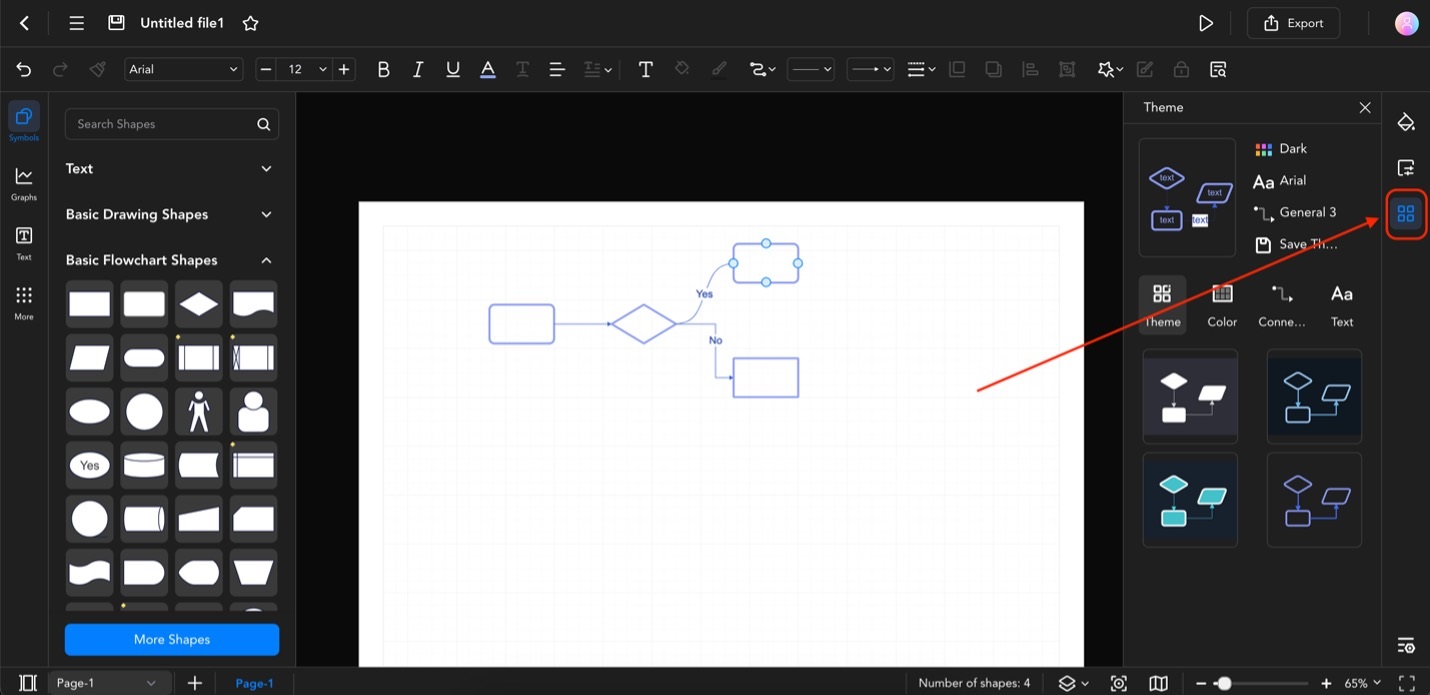
After or while creating your diagram, access the Theme menu from the right-hand toolbar.
Theme toolbar
Step ❷
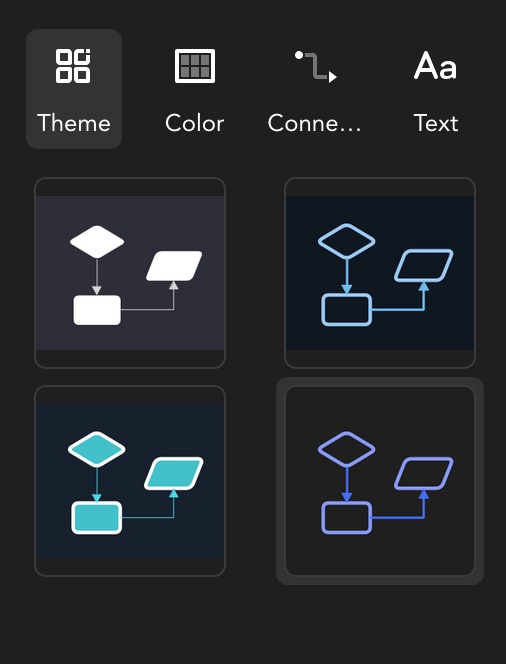
There are four customization options on this page that you can use to change the theme of your diagram:
Theme controls
- Theme. The Theme menu lets you choose from distinct designs like Contrast, Dark, Dazzle, and Fashion. Using these options will immediately change your diagram’s color and design scheme.
Color controls
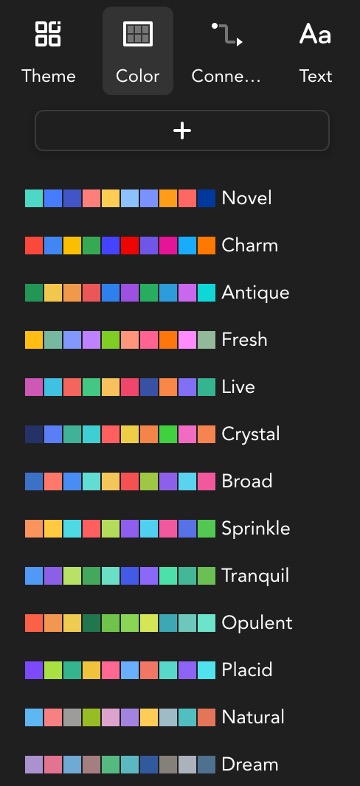
- Color. The Color menu, on the other hand, instantly changes the colors of the diagram to a specific color palette. You can choose from the preset colors or create your palette by clicking the + button.
Connector controls
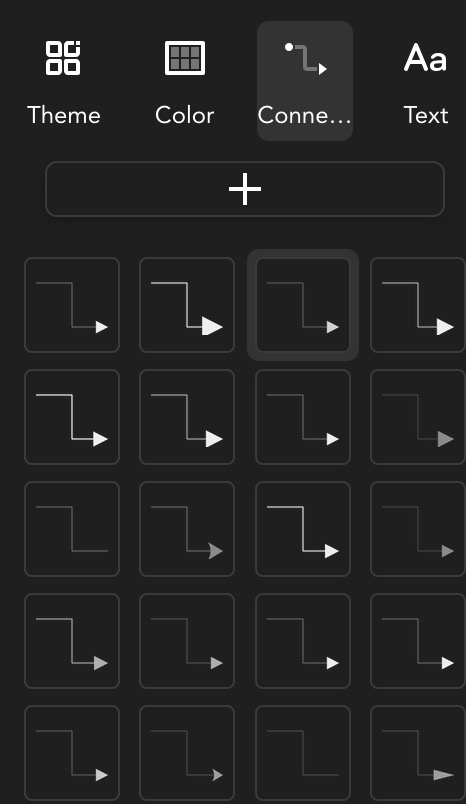
- Connector. This tool lets you switch up the design of the connectors in one go. You can choose from different types of lines and arrowheads.
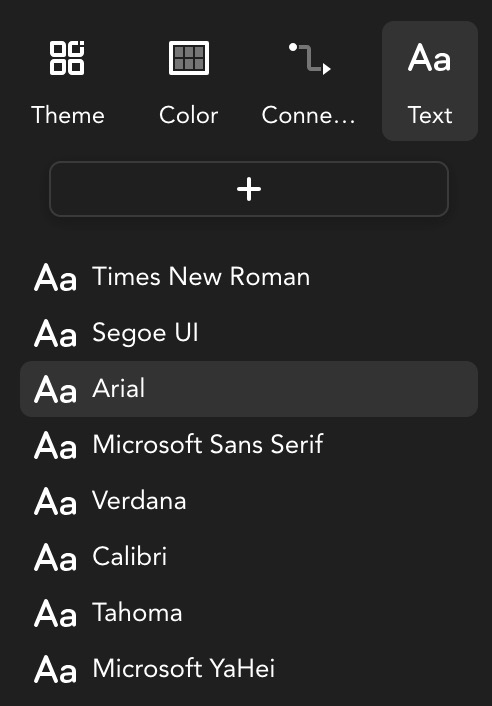
Text controls
- Text. Lastly, the Text tool is a quick way to change the font of text elements in your diagram. Several fonts are available, but you can always create new font styles by clicking +.