Edraw.AI User Guides
-
Getting Started
-
Diagram from Scratch
-
Files Operation
-
Shapes Operation
-
Import Data to Make a Chart
-
Format and Style
-
Insert Object
-
View the Diagram
-
-
Mind Map from Scratch
-
Insert Objects
-
Topics Operation
-
Files Operations
-
View a Mind Map
-
Outline Mode
-
Theme and Style
-
-
Create with Templates
-
Create with AI
-
AI Image Tools
-
AI Diagram
-
AI File Analysis
- AI Chat
- AI OCR
- AI Flowchart
- AI Mind Map
- AI Drawing
-
-
Project Management
An Introduction to Edraw.AI
Edraw.AI is the combination of "ChatGPT + Diagram Tool + Collaboration".
At the heart of Edraw.AI is its Generative AI on:
- Diagramming: AI generator for mind maps, flowcharts, UML diagrams, roadmaps, and more
- Presentation: AI slide generator
- Drawing: AI image generation & image editing
- AI chat assistant
- File analysis: summarize PDFs, Word, etc., into diagrams or text.
As for "Collaboration": one can start a canvas and shared the link with team users. Then uultiple users edit the same canvas. Changes from all users will be saved. Comment, brainstorm, and share instantly.
Upon launching Edraw.AI, you’re greeted by a user-friendly home screen that puts various tools at your fingertips.
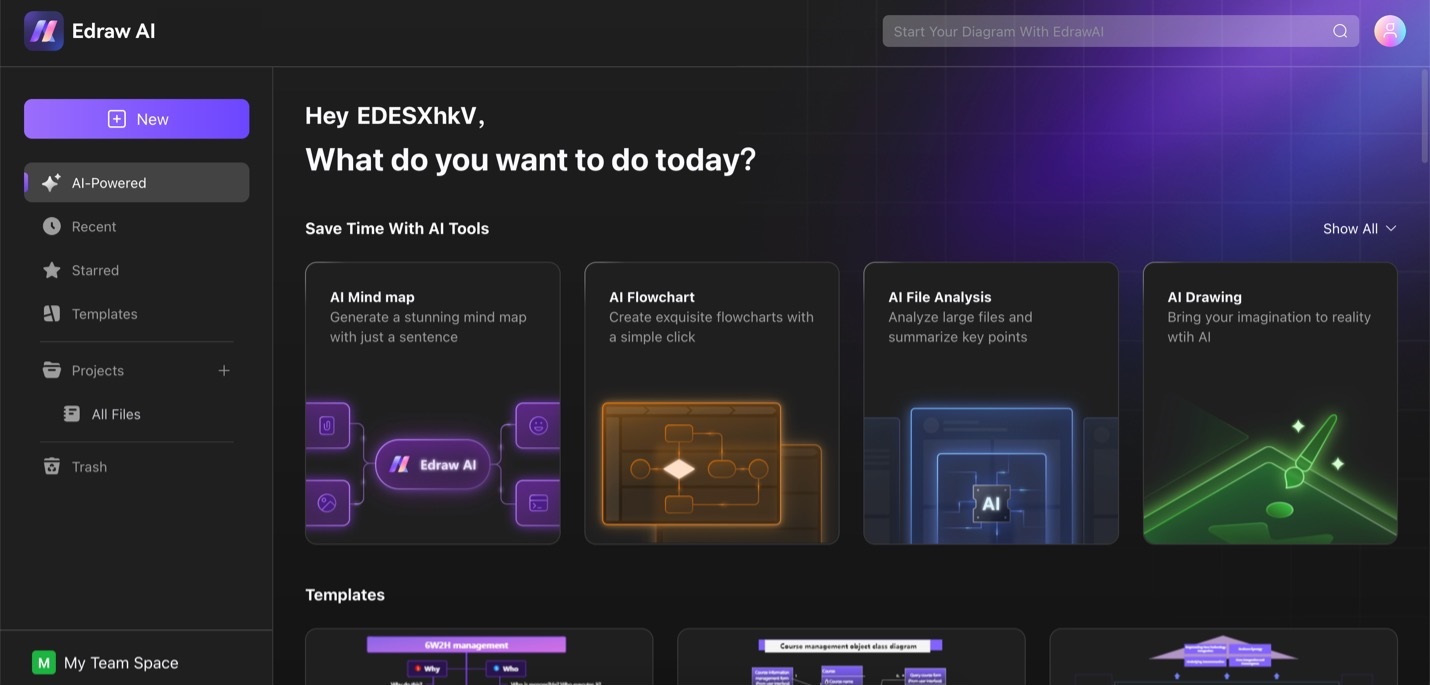
To start creating, you can click on the "+Whiteboard", "+Flowchart", "+Mindmap", and other buttons.
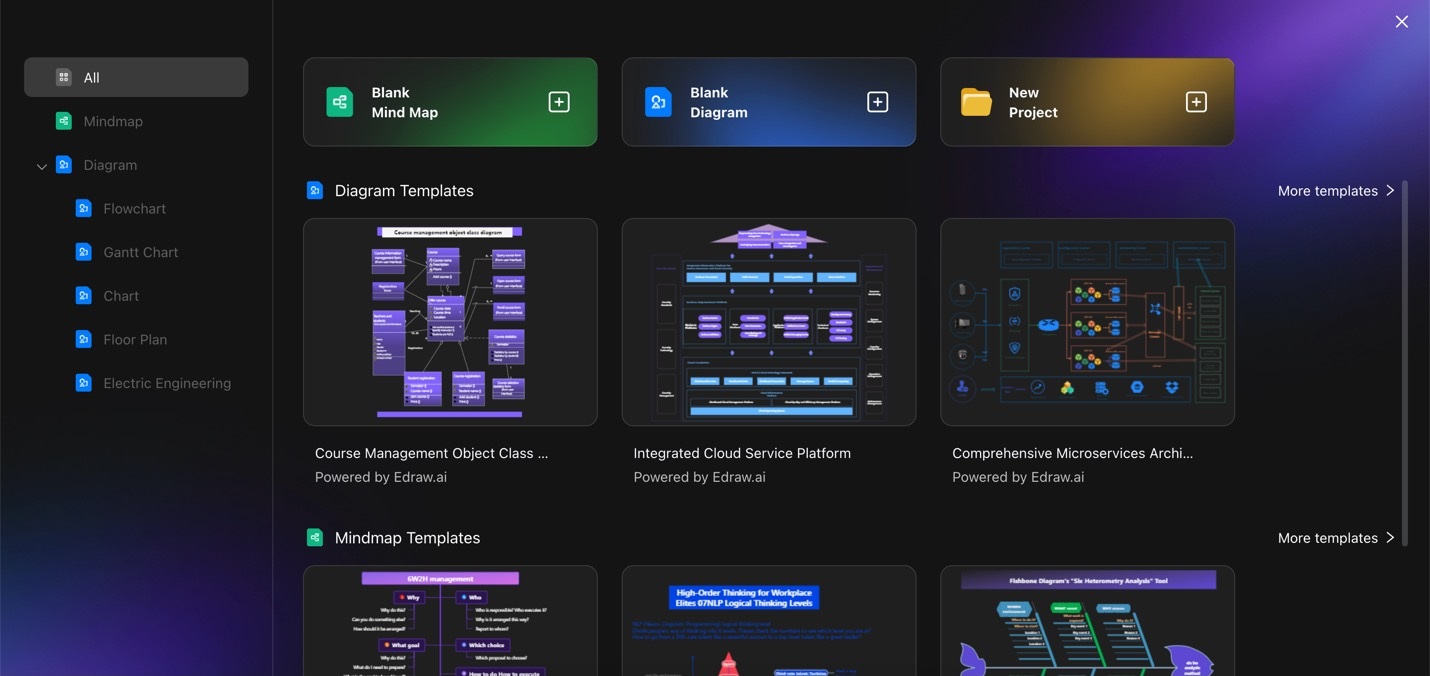
To access AI generation tools and other features on the get-go, navigate to the Edraw Agent tab from the homepage. You’ll see the variety of AI tools that Edraw.AI offers, like AI mind map and flowchart generation, as well as other tools like Presentation. Here’s what these tools do for your reference:
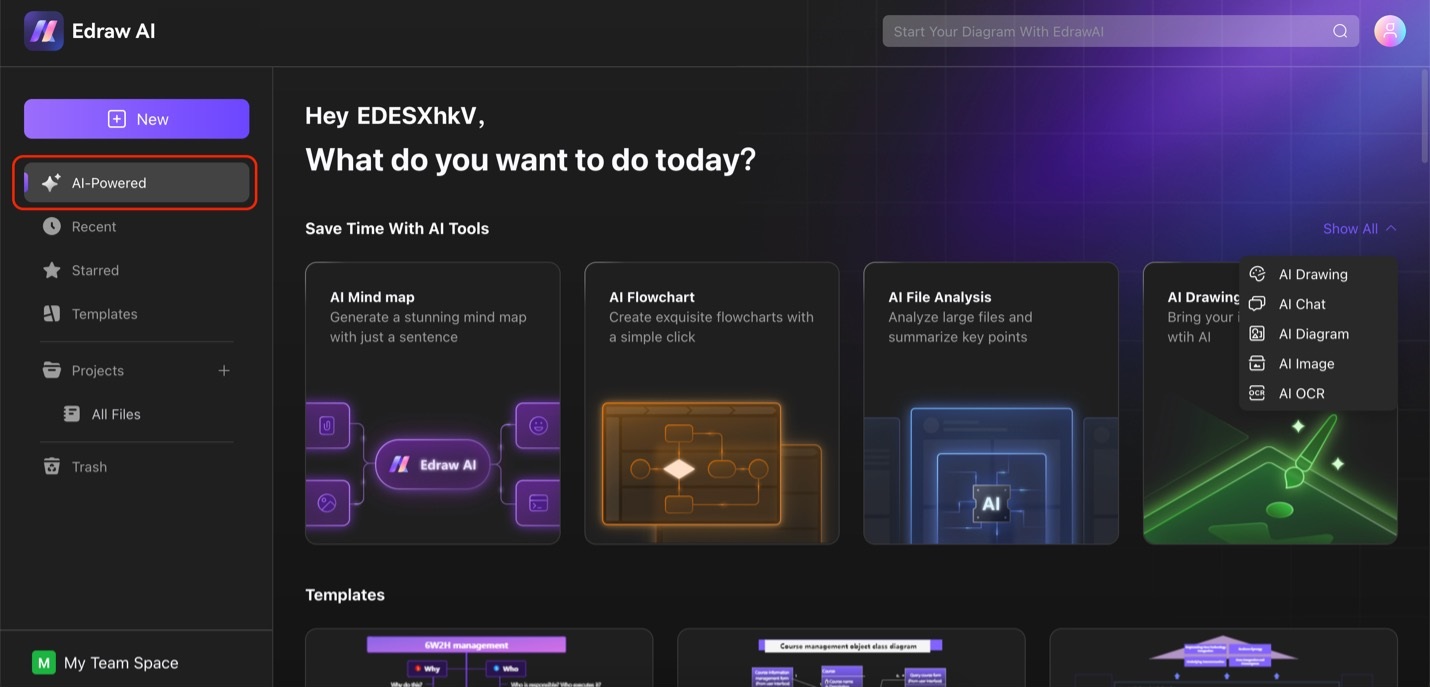
Lastly, go to the Templates menu to browse Edraw.AI’s extensive collection of templates. Here, you’ll find a host of inspiration and templates to draw your diagrams.
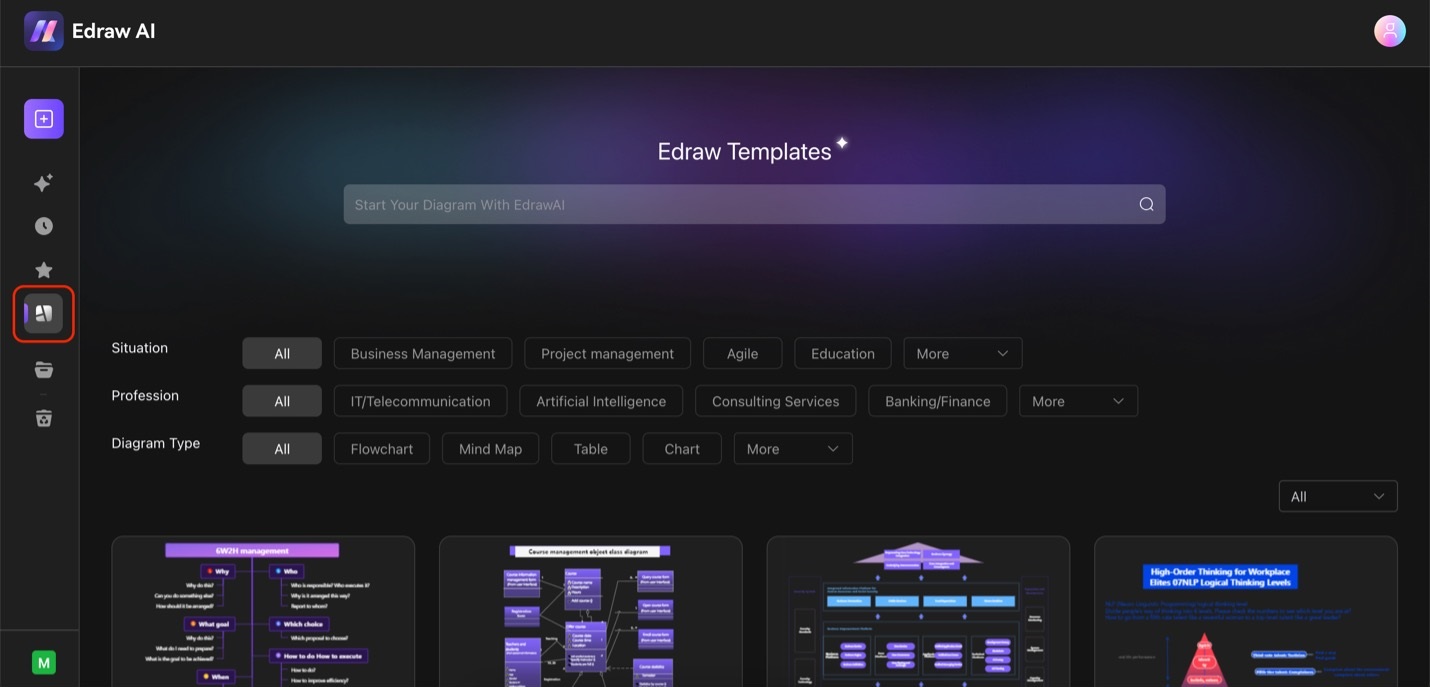
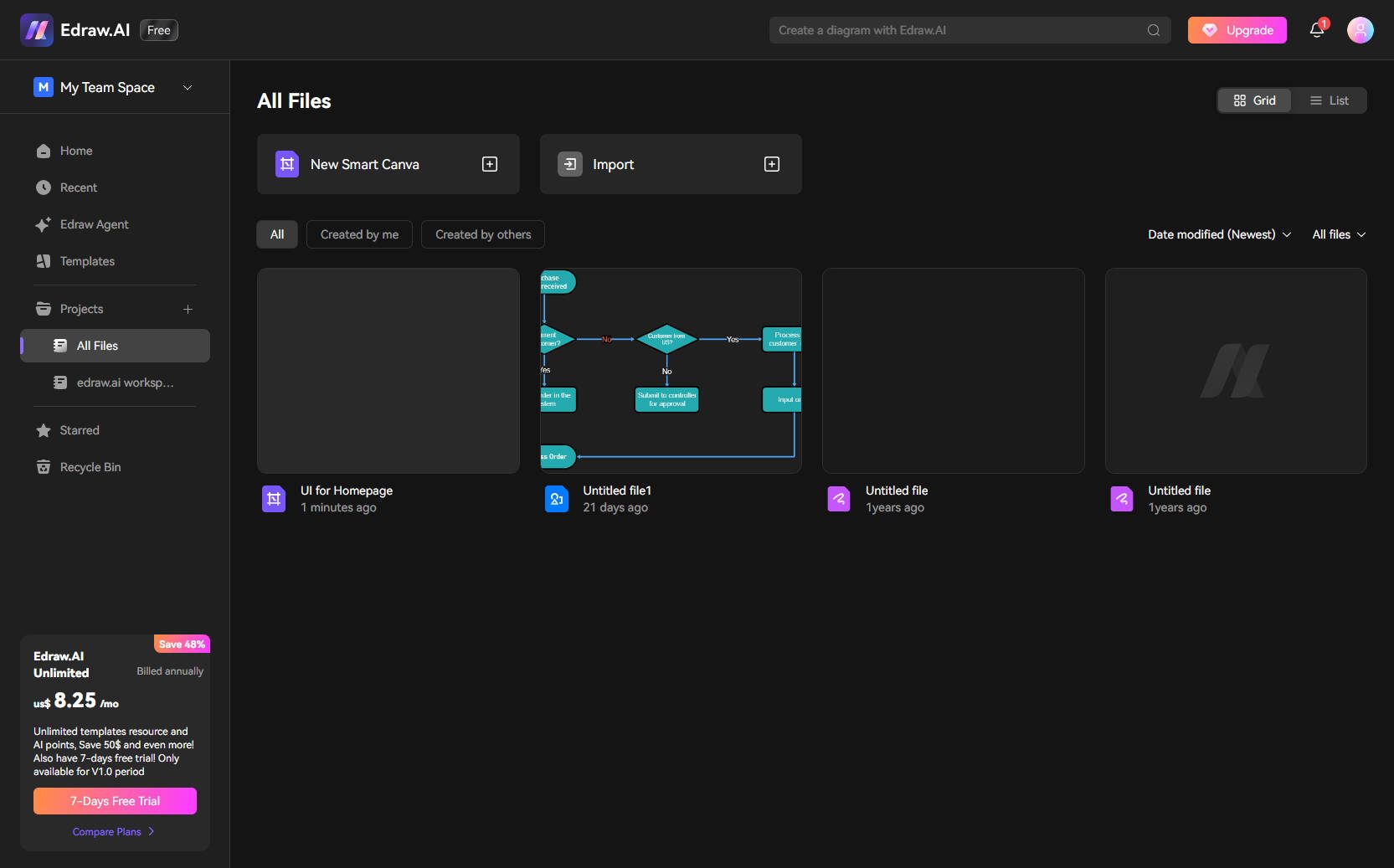
We can create Projects in Edraw.AI. Locate Projects from the menu. There, you can view, create, and manage Projects.
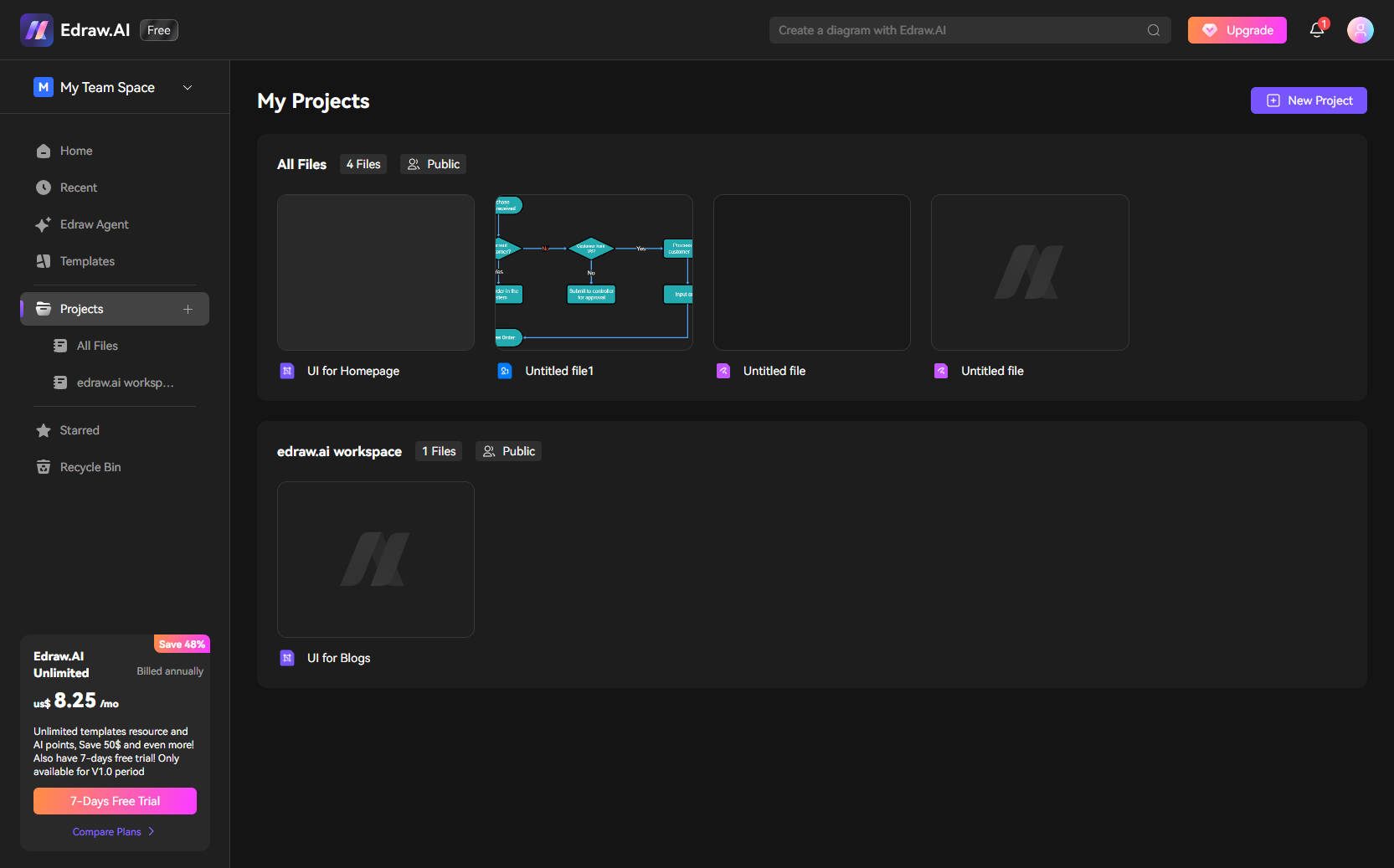
After you create a Project, you can start to create different files under this Project. You can either start a new canvas or import a file.