Ever spent hours creating a flowchart only to realize it's a tangled mess? That was me—until I found Edraw.AI, a powerful online flowchart maker.
In this article
With AI-powered automation and pre-built templates, making flowcharts has never been easier.
After months of testing this tool in depth, I've figured out how to create flowcharts with just a few clicks, even for beginners. So, here's my step-by-step guide.
How to Create a Flowchart in Edraw.AI?
A flowchart offers a visual guide to a process. It divides the process into basic steps with shapes and arrows leading from start to finish.
A clear flowchart highlights inefficiencies, making workflows, problem-solving, and explanations easier.
And, with Edraw.AI, it’s no less than easy. Here are the ways to help you get started easily.
Method 1: Generate a Flowchart with AI Instantly
Edraw.AI's AI Diagram Generator automates the entire process of making a flowchart with the power of Artificial Intelligence. This method is ideal for beginners, professionals, and teams needing fast and efficient flowchart solutions. Let's do it.
Step 1Open the AI Flowchart Generator
- Log in to your Edraw.AI account. If you're new, signing up is free and only takes seconds.
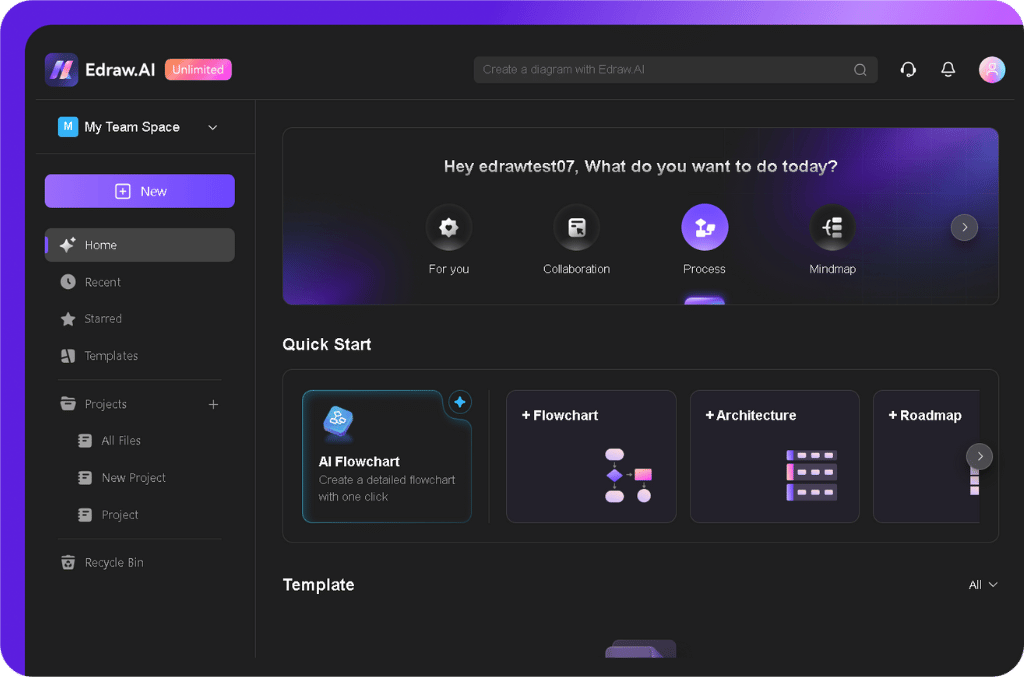
- Go to the Process section from the homepage, then select AI Flowchart under Quick Start.
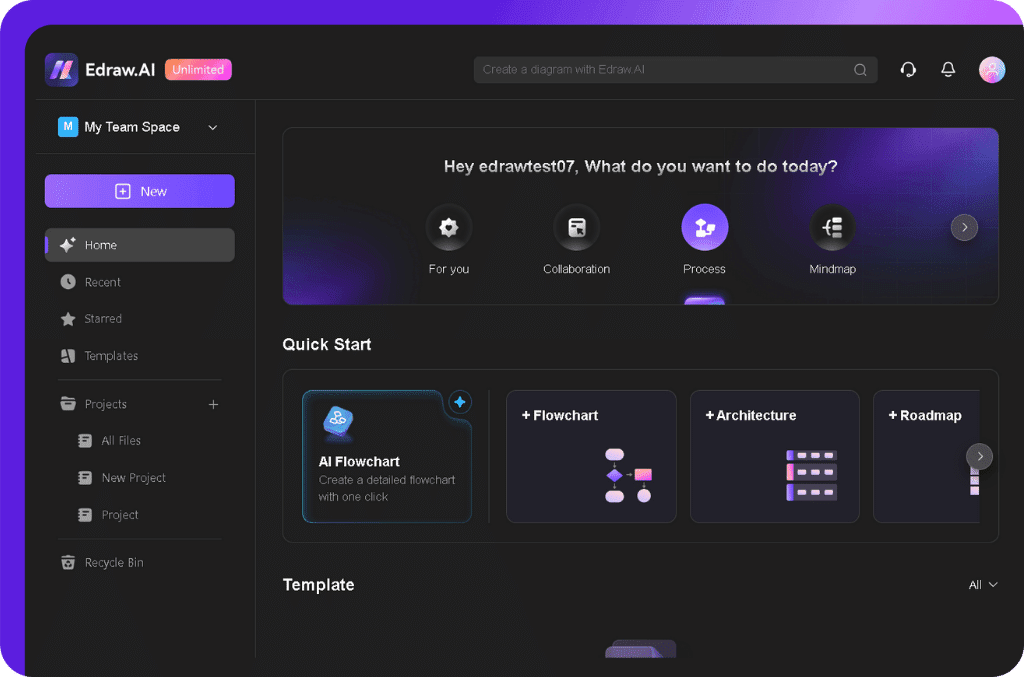
Step 2Describe Your Flowchart
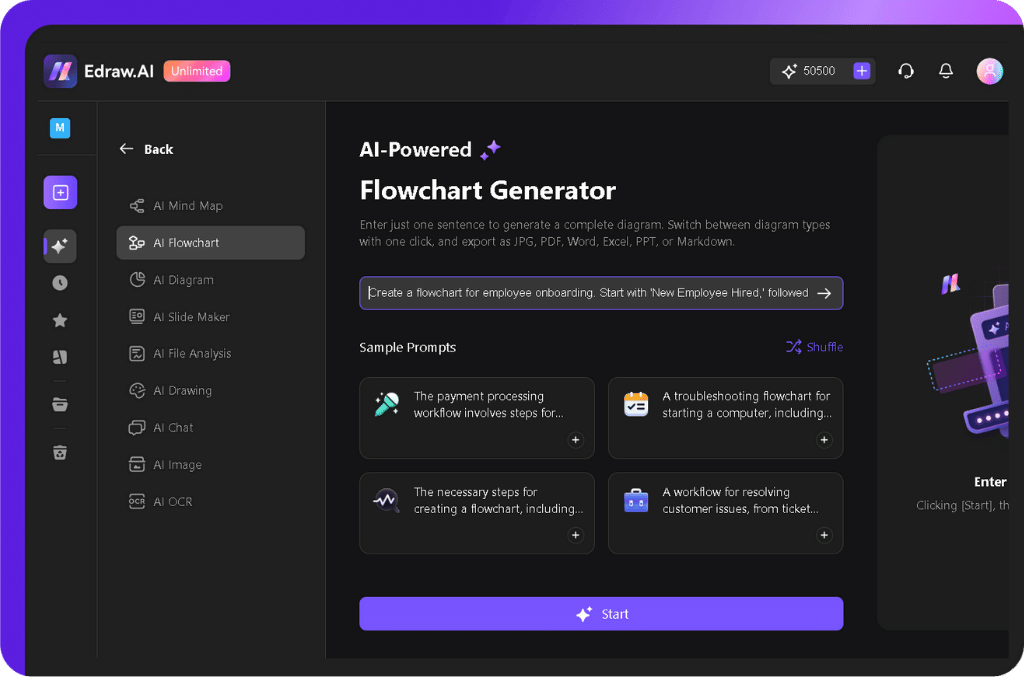
A text box will appear where you can describe the process you want to visualize. Be clear about:
- The workflow or process steps.
- Decision points (Yes/No choices).
- Whether the flowchart should be linear or branching.
- Any formatting preferences (color, shape styles, etc.).
Example Prompt:
"Create a flowchart for employee onboarding. Start with 'New Employee Hired,' followed by 'HR Document Submission,' then 'IT Setup' and 'Orientation Session.' If all steps are completed, proceed to 'Team Integration.' If anything is incomplete, return to 'Follow-up Actions."
- Once you're ready, click Start to let Edraw.AI generate your flowchart.
Step 3Review and Edit the AI-Generated Flowchart
Within seconds, a structured flowchart will be generated based on your description. But don’t forget to review the diagram:
- Are all key steps included? If not, tweak the prompt or edit the diagram manually.
- Do decision points flow correctly? Make sure the Yes/No paths are accurate.
- Is the layout clear? Adjust spacing, alignment, or shape styles if not.
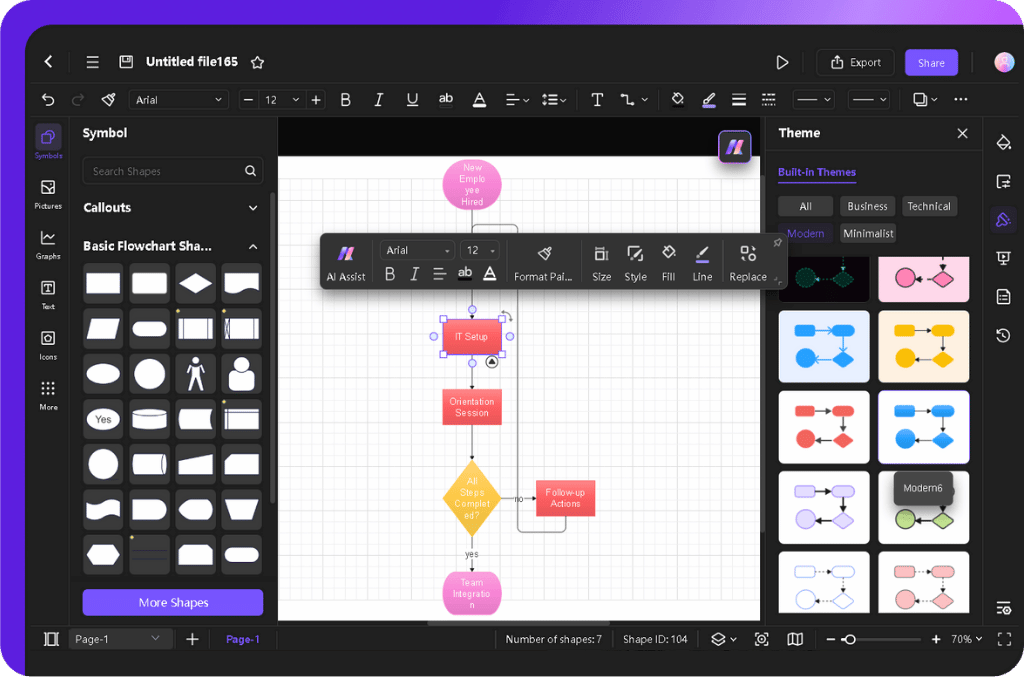
If it follows your requirements, tap Edit in Canvas to refine or export your diagram.
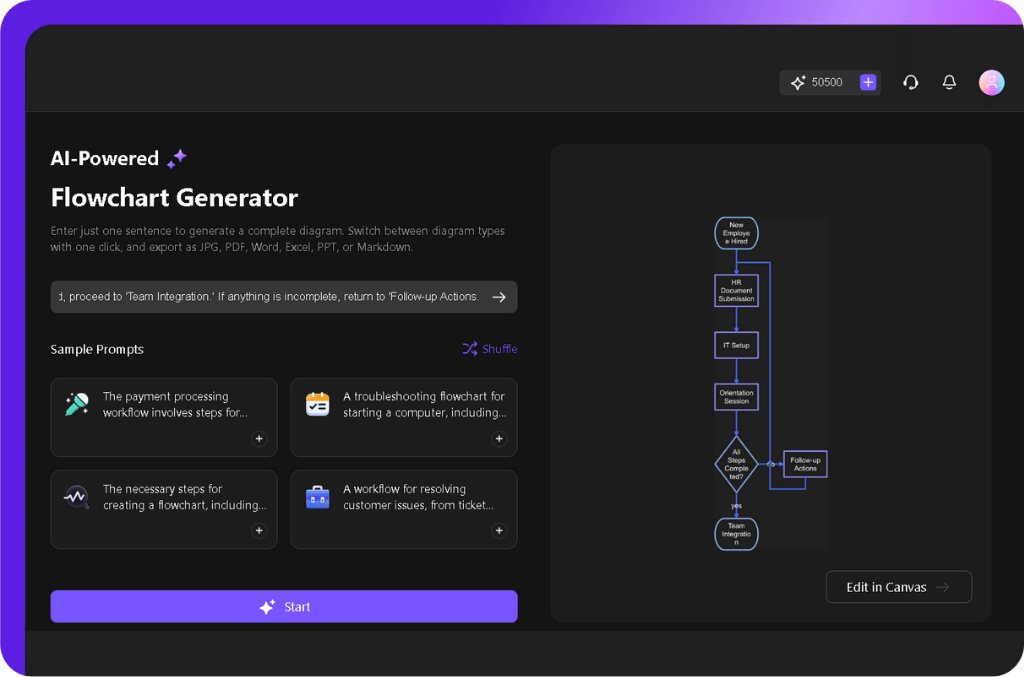
- Modify text labels by clicking directly on any step.
- Use the pop-up menu to adjust fonts, size, style, fill color, line, and more.
- Drag and reposition shapes if needed.
- Select and resize shapes as required.
- Drag connectors to modify the connections. They’ll automatically join the nearest and most suitable shapes.
- To add new shapes, use the left-side Symbol library.
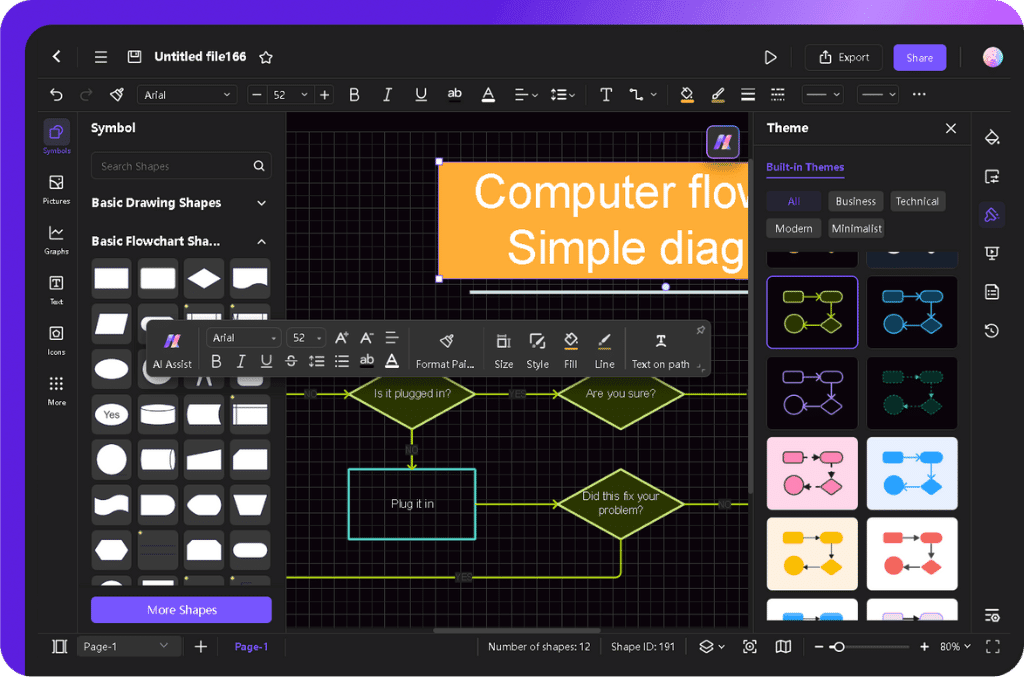
- Try built-in themes from the right-side menu to customize its look.
Step 4Export Your Flowchart
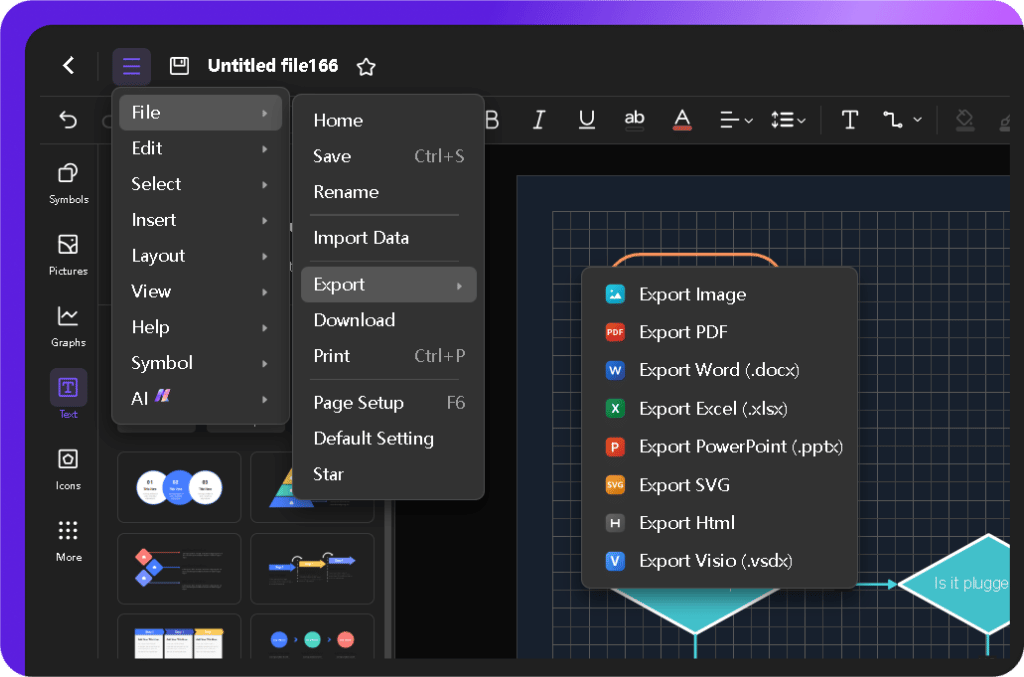
- Once satisfied, export your flowchart using the Export button.
- It offers multiple formats, including Image, PDF, PPTX, SVG, etc. Choose what works best for your project.

Method 2: Create a Flowchart Using a Template
Templates are your best bet for a polished flowchart without starting from scratch. Edraw.AI also offers customizable professional flowchart templates, making it easy to keep things structured and professional.
Choose this method to save time while maintaining a clean format. It’s Ideal when you need a polished layout but don't have a precise workflow in mind. Let me show you how.
Step 1Open Edraw.AI and Find Templates
- On the Edraw.AI homepage, access the Templates section.
- Use the search bar to find the relevant templates and hit Enter.
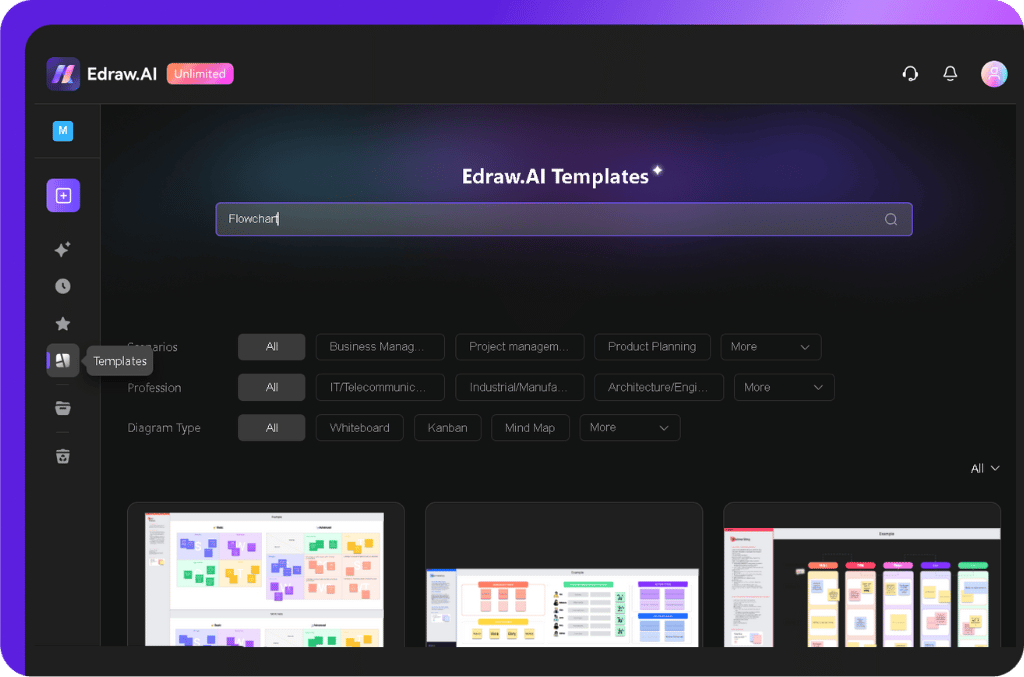
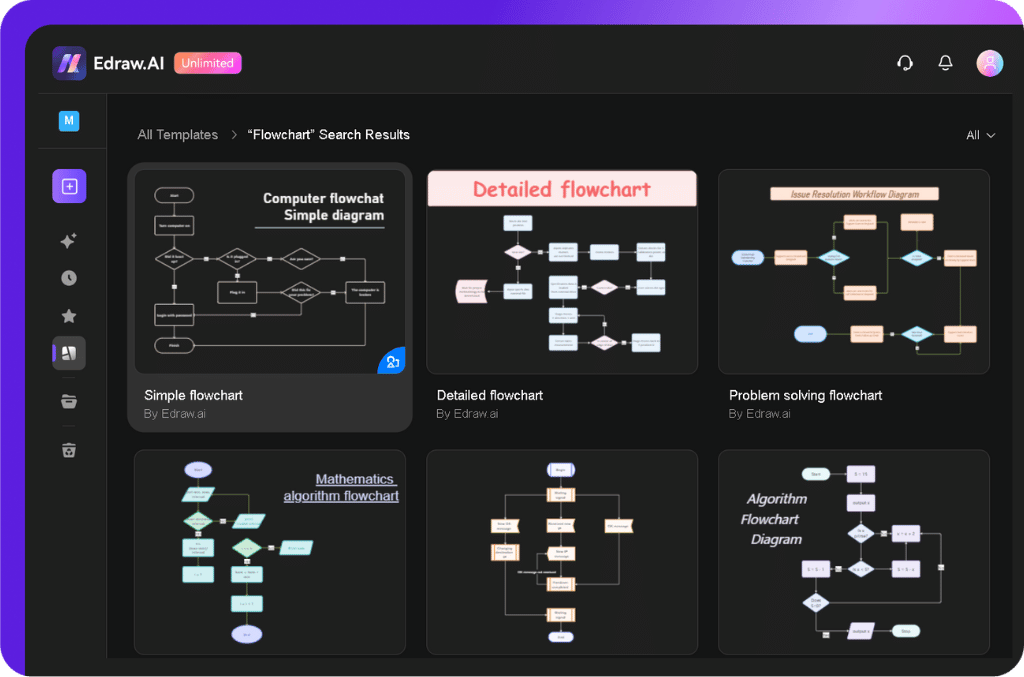
- Explore the multiple options available and choose the one that suits your needs. You can click any to review it.
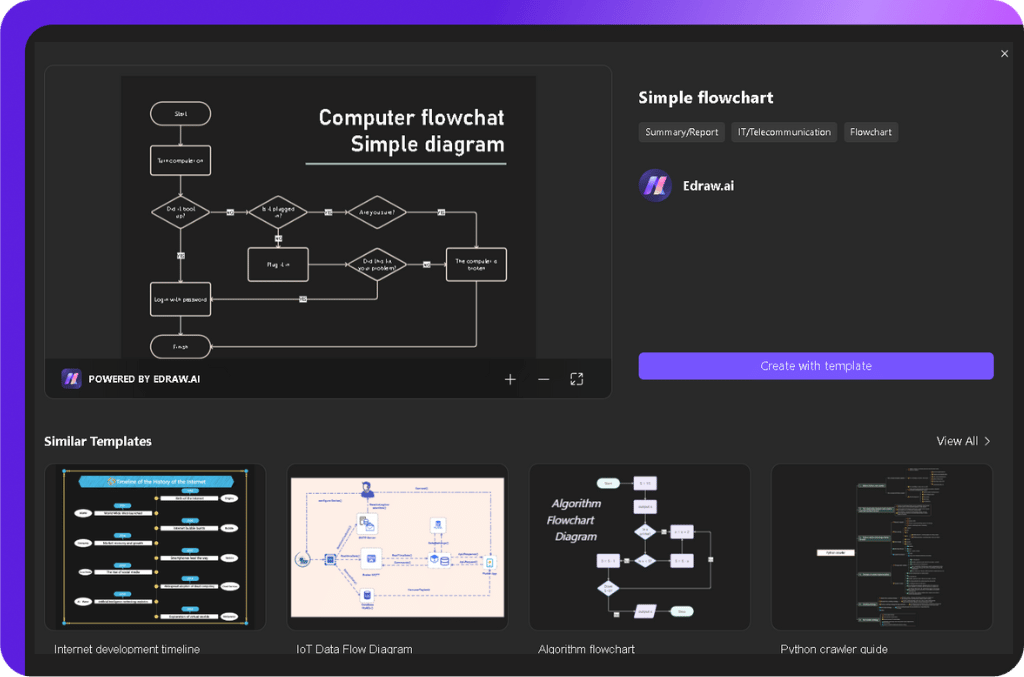
- Once you find a solid one, tap the Create with template button to start modifying it.
Step 2Customize the Flowchart
- Make the template your own by tweaking it using Edraw.AI’s drag-and-drop interface.
- Edit text, rearrange shapes, modify connectors, and adjust styling just like the previous method.
- Improve readability by aligning elements for a clean look.
- Resize shapes to highlight key steps.
Step 3Save or Export Your Final Flowchart
- Check the diagram again. Does everything make sense? Make final changes before saving if needed.
- Use CTRL+S to save your design on the cloud.
- Export your work from the three-line file menu: File > Export. Choose an export format from diverse options, including:
Method 3: Creating Flowcharts from Scratch in Edraw.AI
For full creative control, Edraw.AI also lets you design a flowchart from the ground up. Here’s how:
Step 1Start a New Project
- Click + New on the Edraw.AI dashboard.
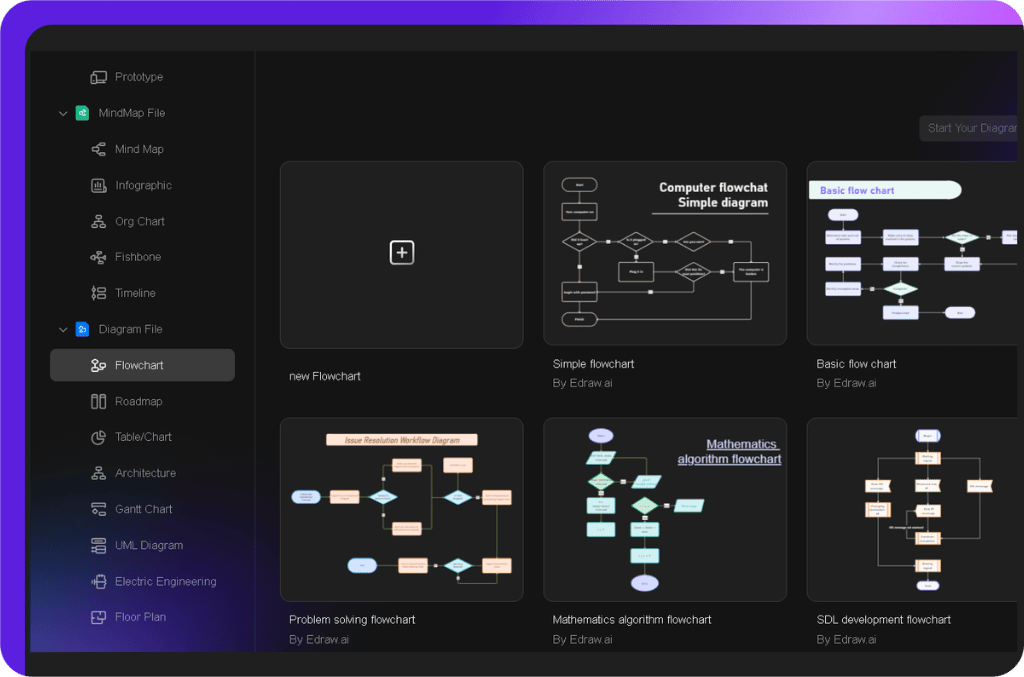
- Select Flowchart from the left side menu and then new Flowchart.
- A blank canvas for flowchart creation will appear in the new window.
Step 2Add Flowchart Elements
- Use the left-side library to drag and drop shapes like Start, Process, Decision, and End.
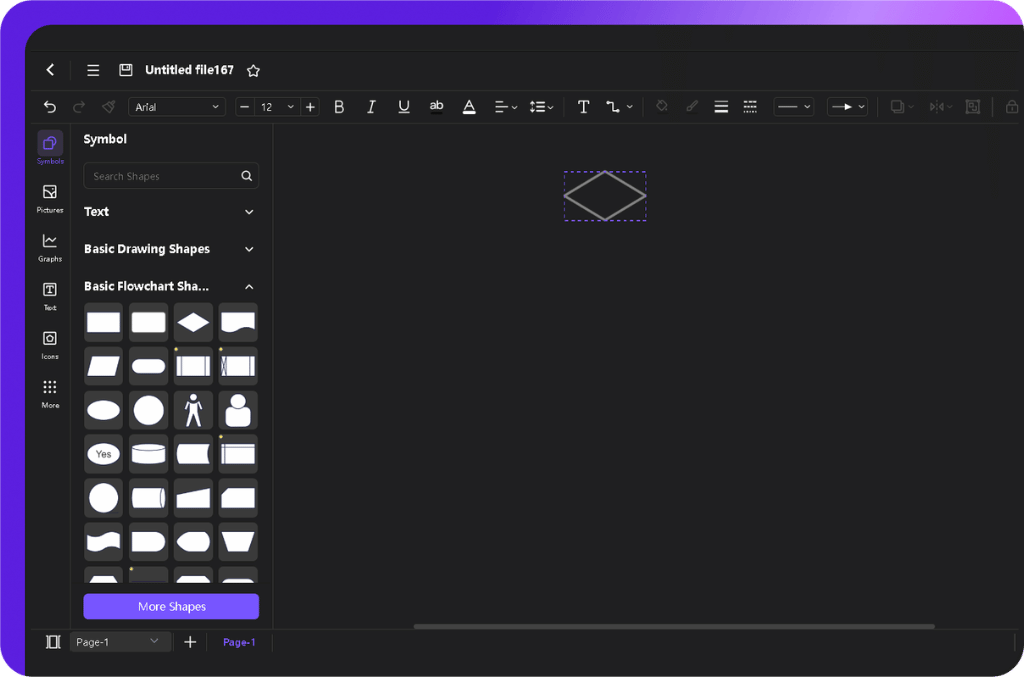
- Once you add all the required shapes, click each shape to add your text to it.
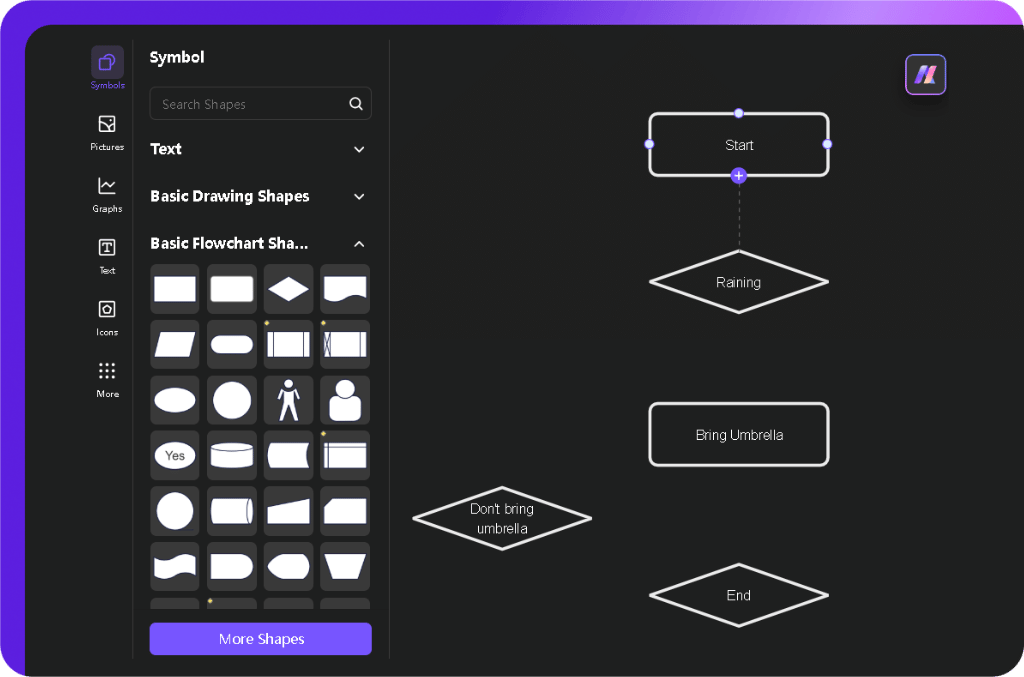
- Get the cursor in any shape. Click and drag from the + sign to link elements to ensure logical flow.
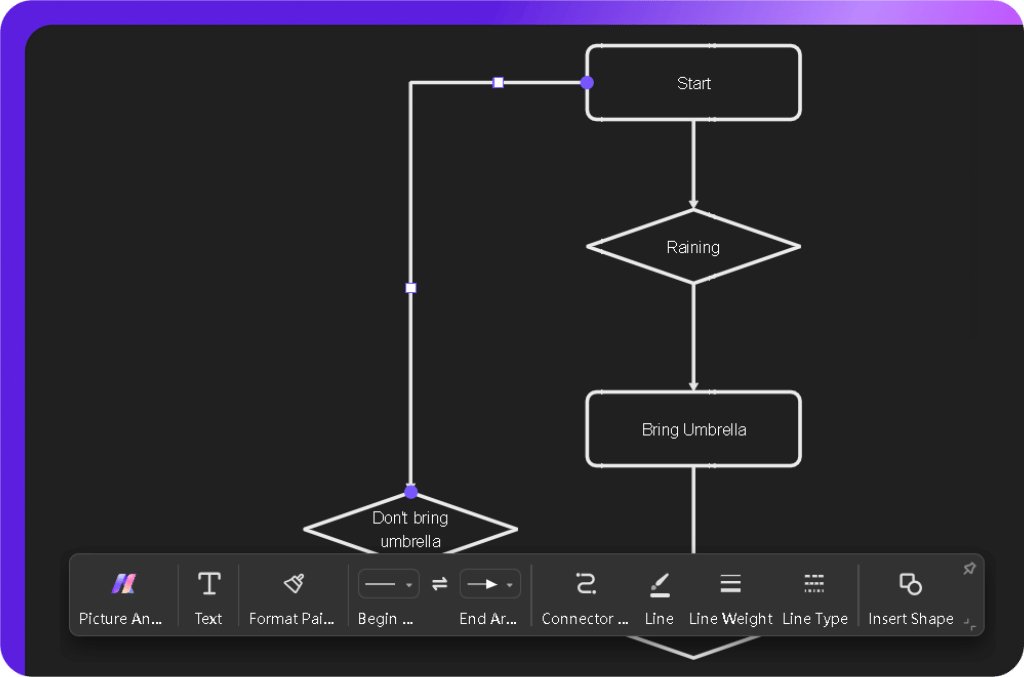
- Select a connector and customize it from the pop-up menu easily.
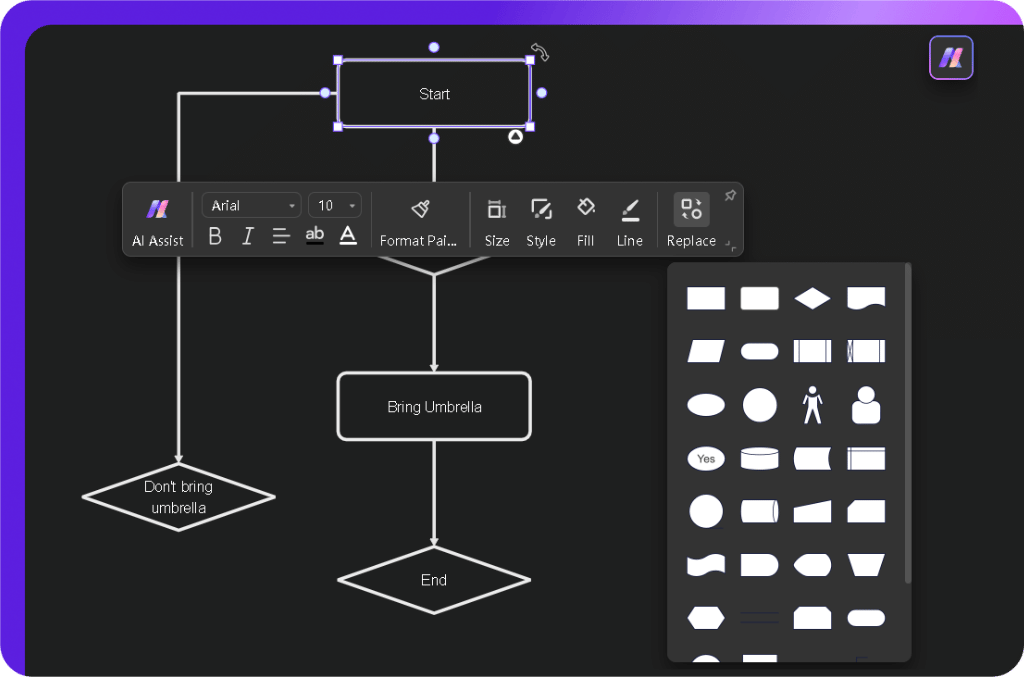
- If a shape doesn’t seem to fit, select it and click Replace in the floating toolbar to swap it.
- Click any shape to modify color, size, font, or line style.
- Use the auto-alignment feature to keep everything structured.
- Double-click beside the connectors to add Yes/No conditions. Click and drag your text boxes to align them perfectly.
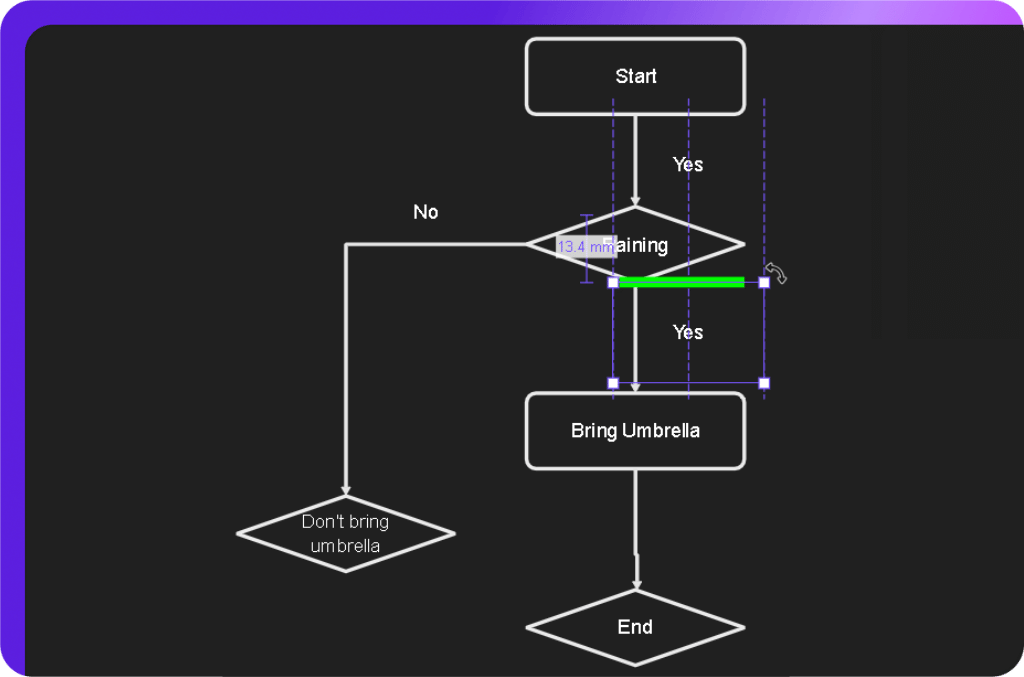
- Drag in more symbols from the library if needed.
- Try built-in themes from the right side to customize the style instantly.
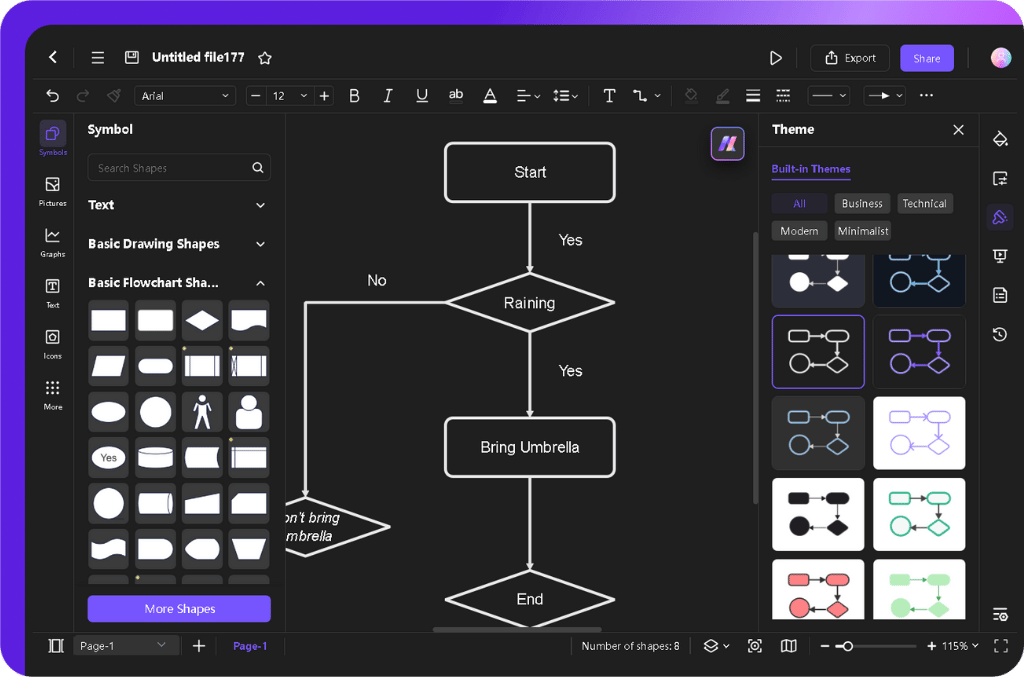
Step 3Save, Export, or Share Your Flowchart
- Once done, recheck everything for any inconsistencies.
- Tap CTRL + S to save your design.
- Hit Export and choose your desired format.
- Share it instantly with your team by creating a link using the Share button.
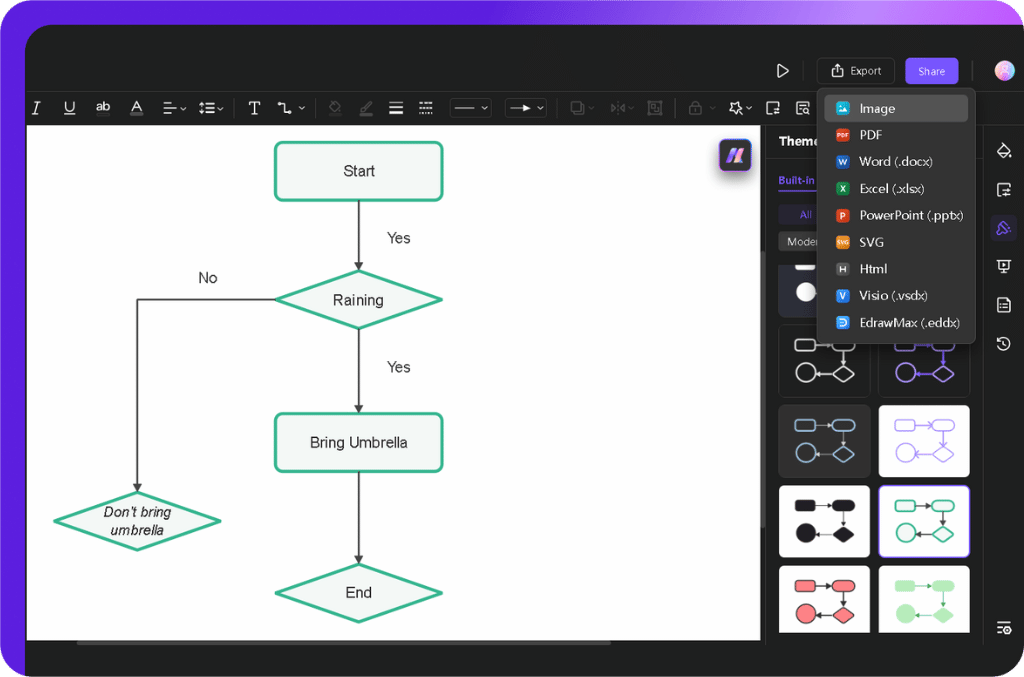
Quick Comparison: Flowchart Creation Methods
Below is a quick table comparing the three methods for creating flowcharts in Edraw.AI:
| Method | Time Required | Required | Editing | Ideal For | Key Benefit |
| AI Flowchart | Fast | Very Low | Beginners or quick work | Instant diagram creation with minimal effort | |
| Template Method | Moderate | Moderate | Users wanting a polished design | Pre-built structure that saves time | |
| From Scratch | Longer | Highest | Advanced users or unique workflows | Full control over layout and design details |
Best Practices for Flowchart Creation
Flowcharts transform messy processes into clear steps. Through years of refining them, I've realized that minor tweaks can improve clarity and functionality. Here's what works best:
1. Plan Before You Start
Sketch the steps first. Identify key actions, decisions, and outcomes before adding shapes. A structured flowchart moves smoothly from start to finish without unnecessary loops.
2. Use Standard Shapes (If Required)
Every shape has a role—rectangles for processes, diamonds for decisions, and ovals for start and endpoints. Sticking to these keeps things intuitive, and keeping sizes uniform also prevents visual clutter.
3. Keep Spacing Clean and Even
Well-spaced elements improve readability. Items should be close enough to follow but not so tight that they feel cramped. Alignment tools in Edraw.AI help maintain a balanced layout.
4. Keep Text Short and Direct
Labels should be simple and clear. Instead of writing "System will verify user details," say "Verify User." Shorter text speeds up understanding and keeps things tidy.
5. Ensure a Natural Flow
Arrange steps in logical order—top to bottom or left to right. Avoid crossing lines, as they make things harder to read. Use elbow or curved connectors to keep paths distinct when overlaps are necessary.
6. Clarify Decision Points
Decision diamonds should have clear Yes/No labels or equivalent choices. If a decision leads back to an earlier step, the return path should be easy to follow.
7. Focus on Simplicity
Avoid using too many shapes—it can overcomplicate the process and make your flowchart harder to read. Stick to essential elements for clarity.
8. Walk Through Your Flowchart
Test the flow step by step. Are any steps missing? Do all connections make sense? A quick review helps catch errors before sharing the final version.
Why Use Edraw.AI to Create Flowcharts?
A Smarter Way to Build Flowcharts

Before switching to Edraw.AI, I wasted hours manually aligning shapes and fixing connectors. Traditional tools made complex workflows frustrating.
With Edraw.AI, flowchart creation became effortless. Whether you're mapping a basic process or designing a detailed system, the AI handles most of the work while keeping customization fully in your hands.
Key Features That Make a Difference
- AI-Powered Flowchart Generation – No need to manually arrange elements. Type a prompt, and Edraw.AI will structure your flowchart instantly, ensuring logical flow and proper connections.
- Drag-and-Drop Simplicity – Prefer manual adjustments? The intuitive interface lets you position and modify elements with precision.
- Extensive Template Library – Start quickly with ready-made templates for workflows, decision trees, and process flows. Templates keep your diagrams structured and consistent.
- Cloud Storage & Collaboration – No matter where you are; cloud storage lets you access and share your flowcharts. Automatic saving prevents data loss.
- Seamless Export Options – Save your diagrams in multiple formats, including PNG, PDF, PPTX, and SVG, making them easy to use in reports or presentations.
Why Choose Edraw.AI Over Traditional Tools?
Manual flowchart tools require constant shape selection, connector adjustments, and formatting tweaks. Even a small edit can throw off the entire layout, but Edraw.AI eliminates that hassle.
- Faster Workflow – AI-assisted creation drastically reduces setup time.
- Error-Free Diagrams – Ensures proper alignment and logical flow.
- Flexible Customization – Choose between automated generation and manual editing.
- Cross-Device Access – Work from any device without installations.
For anyone who frequently creates flowcharts, Edraw.AI changes the game. Whether you want instant AI-generated diagrams or prefer hands-on control, it adapts to your workflow.
Conclusion
Creating flowcharts should be simple and efficient. Edraw.AI makes that possible. Whether you let AI generate a structured diagram, tweak a template, or start from scratch, you stay in control with little effort.
The drag-and-drop interface, smart connectors, and live editing tools remove the hassle. Best of all, you can export and share instantly. No more fighting with outdated tools or messy layouts. If you want smooth, professional results, Edraw.AI gets the job done.
Try Edraw.AI for free and start making professional flowcharts in minutes—sign up today!